AI-powered Microsoft Word add-in that applies word-level tracked changes using a structure-aware diff strategy — plus document summarization with comment extraction and tracked changes analysis.
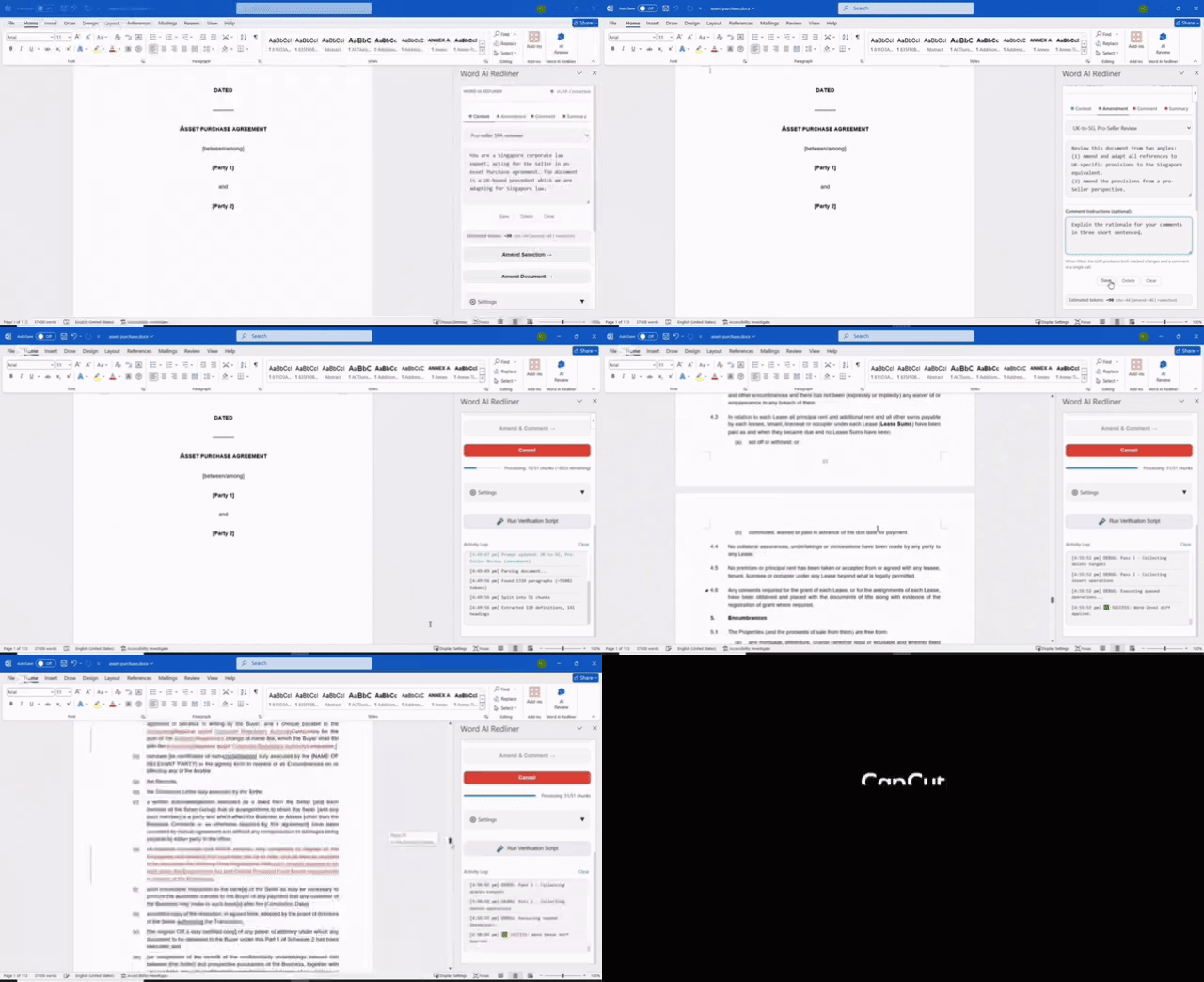
Project history: This library was extracted from a private codebase and open-sourced as a standalone project in Jan 2026.
- Word-level diffs with tracked changes via office-word-diff
- Token map strategy with sentence fallback, block replace as last resort
- Configurable LLM backends: Ollama and vLLM (OpenAI-compatible)
Three-Category Prompt System
- Context, Amendment, and Comment prompt categories with dedicated tabs
- Full CRUD: create, save, update, delete prompts per category
- Per-category activation with
{selection}placeholder replacement - Prompts persist in localStorage across sessions
Document Comment Summary
- 4th "Summary" tab — extract all document comments, send to LLM, generate a formatted Word document
{comments}placeholder inserts structured comment data (author, annotated text, comment text){whole document}placeholder extracts full document text with configurable richness:- Plain — raw paragraph text
- Headings — markdown-style heading markers (
## Section Title) - Structured — headings + list item numbering and indentation
{tracked changes}placeholder extracts revision marks via OOXML parsing (w:ins, w:del, w:moveFrom, w:moveTo)- Generated summary document includes annex with numbered source comments
- LLM markdown output auto-converted to HTML via marked
- Tables in generated documents render with visible borders
Tracked Changes Extraction (OOXML)
- Parses
body.getOoxml()with browser DOMParser — no external dependencies - Handles
pkg:packagewrapper,w:proofErrnormalization - Pairs adjacent
w:del+w:insfrom same author as replacements - Detects move operations (
w:moveFrom/w:moveTo) - Skips table row revision markers (
w:ins/w:delinsidew:trPr) - Namespace-aware querying with prefix fallback for cross-browser compatibility
- Author identity prominently included in LLM-formatted output
Async Comment Queue
- Bookmark-based range persistence for async comment insertion
- Comment status bar with pending count and retry-on-error
- WordApi 1.4 detection with graceful degradation
Settings & UX
- Settings auto-save on every change (no Save button)
- Live token estimation with real document metrics (async Word API read, cached, debounced)
- Document extraction richness dropdown (Summary mode only)
- Tracked changes extraction toggle (Summary mode only)
- Mode switching: Amendment/Comment tabs disabled when Summary is active
- Review button relabels to "Generate Summary" in Summary mode
Backend Selector
- Ollama and vLLM backends with unified OpenAI-compatible API
- Model dropdown auto-populated from backend
/v1/modelsendpoint - Configurable endpoint URL and optional API key
- Track Changes and Line Diff toggles
Parallel LLM Orchestration
- Full-document amendment and commenting: parse, chunk, dispatch to LLM in parallel, reassemble
- Worker-pool concurrency with configurable limits (auto-tuned: 4 workers for large chunks, 6 for smaller)
- AbortController-based cancellation stops pending chunks immediately
- Progress tracking with per-chunk ETA estimation
- Retry failed chunks without re-processing successful ones
Document Parsing & Chunking
- Paragraph-level document parsing with style and heading detection
- Token-aware chunking with configurable max size (default 6K tokens)
- Heading-based chunk boundaries (H1/H2 trigger splits; H3+ stay coherent)
- Overlap paragraphs provide preceding context to each chunk
- Tiny trailing chunks merged into previous chunk to prevent orphans
Context Extraction
- Automatic definition extraction via regex (means/shall-mean/is-defined-as, the-X, hereinafter-X patterns)
- Abbreviation expansion via word-initial matching heuristic
- Document outline generation from heading hierarchy
- Context prefix formatted and injected into each chunk's LLM system message
Formatting-Preserving Reassembly
- Paragraph-level amendment strategy: aligns LLM output paragraphs to original document paragraphs using LCS + word-level similarity matching
- Within-paragraph word-level diff via token map strategy preserves run-level formatting (bold, italic, font, color)
- Paragraph properties (styles, numbering, indentation) preserved through paragraph-scoped operations
- Graceful degradation chain: paragraph-level -> word-level diff -> sentence diff -> block replace
- Line ending normalization (
\r<->\n) throughout the pipeline - Content validation rejects severely truncated LLM output before applying
- Amendments applied in reverse document order to prevent range invalidation
- Bookmarks persist chunk ranges across LLM processing time
Merged Amendment + Comment Mode
- Comment instructions persisted with prompt data (save/restore across sessions)
- When comment instructions are provided in amendment mode, LLM produces delimited
===AMENDMENT===/===COMMENT===output - Response parser extracts both sections; comments inserted on bookmarked ranges after all amendments
- Fallback: undelimited responses treated as amendment-only
LLM Output Quality
- Critical output rules appended to amendment prompts: no commentary, no markdown, preserve structure
stripMarkdown()post-processor as safety net for amendment responsesstripThinkTags()removes<think>reasoning blocks from LLM output
Testing
- 388 unit tests across 13 test suites (Jest)
- TDD workflow: failing tests written before implementation
- Covers: prompt state/persistence/composition, comment extraction, document generation, tracked changes OOXML parsing, orchestrator dispatch/concurrency, reassembler paragraph alignment, document chunking, context extraction
There are two ways to run this add-in:
| Method | Best for | Requirements |
|---|---|---|
| Docker | Quick setup, no Node.js needed | Docker, Docker Compose |
| npm | Development, customization | Node.js 18+ |
Both methods require HTTPS certificates trusted by the machine running Word.
- Docker and Docker Compose
- HTTPS certificate files (see Create HTTPS Certificates)
- Clone the repository
git clone https://github.com/yuch85/word-ai-redliner.git
cd word-ai-redliner-
Create HTTPS certificates (see Create HTTPS Certificates)
Place
server.pemandserver-key.pemin the project root. -
Configure environment variables
Copy the Docker example and edit it:
cp .env.docker.example .envOn Windows PowerShell:
Copy-Item .env.docker.example .envImportant: Edit .env and set HOST to the hostname or IP address that
the Word client can reach. If Word runs on a different machine, do not
use localhost.
- Start the container
docker compose up -dThe container automatically generates manifest.xml on first startup using
your .env values. The manifest is written to the project root.
-
Trust the certificate on Windows (see Trust the Certificate on Windows)
-
Sideload the add-in (see Sideload the Add-in)
Use the
manifest.xmlfile in the project root.
- Node.js 18+
- HTTPS certificate files (see Create HTTPS Certificates)
- Clone the repository
git clone https://github.com/yuch85/word-ai-redliner.git
cd word-ai-redliner- Install dependencies
npm install-
Create HTTPS certificates (see Create HTTPS Certificates)
Place
server.pemandserver-key.pemin the project root. -
Configure environment variables
Copy the example and edit it:
cp .env.example .envOn Windows PowerShell:
Copy-Item .env.example .envImportant: Edit .env and set HOST to the hostname or IP address that
the Word client can reach. If Word runs on a different machine, do not
use localhost.
- Start the dev server
npm startThis generates manifest.xml from your .env values and starts the webpack
dev server with hot reload.
-
Trust the certificate on Windows (see Trust the Certificate on Windows)
-
Sideload the add-in (see Sideload the Add-in)
Use the
manifest.xmlfile in the project root.
The add-in must be served over HTTPS. Word will block untrusted certificates.
Place your cert files in the project root:
server.pem(certificate)server-key.pem(private key)
- Install mkcert.
- Create a local CA and generate a cert:
mkcert -install

# For localhost (same machine):
mkcert localhost

# For a remote server (use your actual IP or hostname):
mkcert <your-server-ip-or-hostname>- Rename the output files:
cp localhost.pem server.pem
cp localhost-key.pem server-key.pem
On Windows PowerShell:
Copy-Item localhost.pem server.pem
Copy-Item localhost-key.pem server-key.pem# Replace <YOUR_HOST> with localhost or your server IP/hostname
openssl req -x509 -nodes -days 365 \
-newkey rsa:2048 \
-keyout server-key.pem \
-out server.pem \
-subj "/CN=<YOUR_HOST>"On the Windows PC running Word:
- Copy the
.pemcert file to the Windows PC. - Convert PEM to CRT (if needed):
openssl x509 -in server.pem -out server.crt- Open certmgr.msc (run as Administrator).
- Navigate to Trusted Root Certification Authorities → Certificates.
- Right-click → All Tasks → Import...
- Select the
.crtfile and finish the wizard.
If you used mkcert, you can install the mkcert root CA on Windows instead:
- Copy the root CA from the server machine (find it via
mkcert -CAROOT) - Import it into Trusted Root Certification Authorities
Method 1: Add from file
- Open Word → Insert → Get Add-ins → My Add-ins.
- Click Add a custom add-in → Add from file....
- Select
manifest.xmland confirm.
Method 2: Network shared folder (Windows only)
- Create a shared folder and note the network path.
- In Word: File → Options → Trust Center → Trust Center Settings → Trusted Add-in Catalogs → Add catalog (check Show in Menu).
- Copy
manifest.xmlinto the shared folder. - In Word: Home → Add-ins → Advanced → Shared Folder → select the add-in → Add.
For full details, see the Microsoft sideloading guide.
- Start the server (
docker compose up -dornpm start). - Open Word → Insert → Add-ins → My Add-ins.
- Click Add a custom add-in → Add from file... → select
manifest.xml. - Trust the certificate in Keychain if prompted.
| Problem | Solution |
|---|---|
| Word shows "blocked because it isn't signed" | Trust the HTTPS certificate on the Windows client |
| Word cannot load the add-in | Verify HOST in .env is reachable from Word |
| Manifest not generated | Ensure .env exists before running npm start or docker compose up |
| Firewall issues | Allow inbound TCP 3000 on the server |
| Variable | Default | Description |
|---|---|---|
HOST |
localhost |
Hostname for manifest URLs (must be reachable from Word) |
PORT |
3000 |
Port for manifest URLs |
PROTOCOL |
https |
Protocol for manifest URLs |
DEV_SERVER_HOST |
0.0.0.0 |
Host to bind webpack dev server |
DEV_SERVER_PORT |
3000 |
Port for webpack dev server |
SSL_CERT_FILE |
server.pem |
Path to SSL certificate |
SSL_KEY_FILE |
server-key.pem |
Path to SSL private key |
OLLAMA_PROXY_PATH |
/ollama |
Local proxy path for LLM requests |
OLLAMA_PROXY_TARGET |
http://localhost:11434 |
Upstream Ollama server URL |
DEFAULT_OLLAMA_URL |
/ollama |
Default Ollama URL shown in UI |
DEFAULT_MODEL |
gpt-oss:20b |
Default model shown in UI |
Users can override DEFAULT_OLLAMA_URL and DEFAULT_MODEL via the add-in
settings UI; those overrides persist in localStorage.
Pre-built images are available on GitHub Container Registry:
docker pull ghcr.io/yuch85/word-ai-redliner:0.2.0
docker pull ghcr.io/yuch85/word-ai-redliner:latestSee ARCHITECTURE.md for details.
npx jest --no-coverage    # 388 tests across 13 suites
npx webpack --mode development   # verify build
Test suites cover:
prompt-state.spec.js— PromptManager CRUD, activation, persistence, summary categoryprompt-persistence.spec.js— localStorage round-trip, migration, edge casesprompt-composition.spec.js— composeMessages, composeSummaryMessages, placeholder replacement, output rulescomment-extractor.spec.js— extractAllComments, extractDocumentStructured, estimateTokenCount, extractTrackedChanges (OOXML parsing)document-generator.spec.js— buildSummaryHtml (markdown conversion, table borders, escaping), createSummaryDocument (Word API)comment-queue.spec.js— CommentQueue state management, bookmark namingllm-client.spec.js— sendPrompt, stripThinkTags, stripMarkdown, testConnectiondocument-parser.spec.js— parseDocument, paragraph extraction, heading detection, style mappingdocument-chunker.spec.js— chunkDocument, heading-based splitting, overlap, token limitscontext-extractor.spec.js— extractContext, definitions, abbreviations, outline generationorchestrator.spec.js— processChunksParallel, concurrency, cancellation, merged mode parsingreassembler.spec.js— paragraph alignment, line ending normalization, content validationresponse-parser.spec.js— parseDelimitedResponse, fallback classification
Word AI Redliner's formatting-preserving reassembly draws on insights from several excellent open-source projects in the document editing space. We are grateful to their authors for sharing their work:
-
docx-redline-js by Anson Lai -- A JavaScript OOXML-level redlining engine whose surgical mode, paragraph property cloning, and reconstruction writer patterns informed our approach to preserving paragraph and run formatting during document reassembly.
-
safe-docx by UseJunior -- A safe OOXML manipulation library whose paragraph shell cloning, template run selection, multi-stage text matching, and run splitting patterns guided our thinking on formatting fidelity and style resolution.
-
adeu by Dealfluence Oy (Mikko Korpela, Uzair Ahmed) -- A Python OOXML redlining tool whose virtual text contract, run coalescing, and deep-copy
w:pPr/w:rPrpreservation patterns shaped our understanding of how to maintain formatting coherence through tracked change operations. -
@xmldom/xmldom -- A W3C-compliant XML DOM implementation whose namespace-aware manipulation patterns and whitespace preservation mechanisms underpin correct OOXML handling.
This project is dual-licensed:
- MIT License applies to the Word add-in codebase.
- Apache 2.0 License applies to the
office-word-difflibrary (used as a dependency).
See LICENSE and LICENSE-APACHE for details.